When we renewed our EA with Microsoft we got slightly different Microsoft 365 Audio Conferencing Licenses. They are now called “Microsoft Teams Audio Conferencing with dial-out to USA/CAN for GCC.” Fancy!
The downside to this is we had to assign all of our users with the new license and remove the old one. I must be missing something here but I could only find one tedious way to do this.
From the Microsoft 365 Admin Center – Active Users you can select 40 user at a time and change licensing. I filtered for “licensed users”, selected 40 users, and choose “Manage product licenses”.
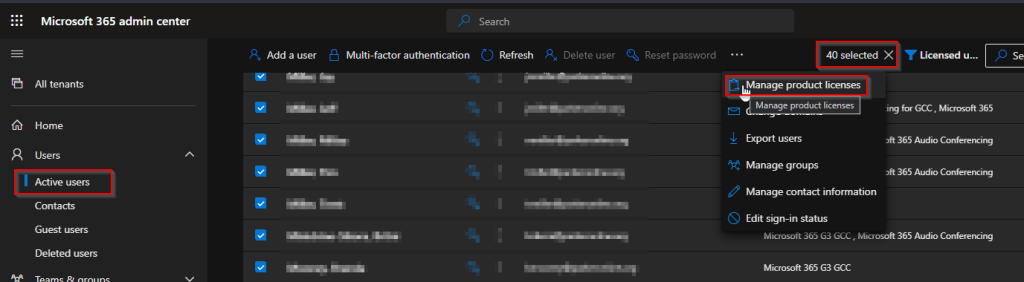
I choose “Assign more”, but there is an option for “Replace” or “Unassign all”.

Wait for confirmation.
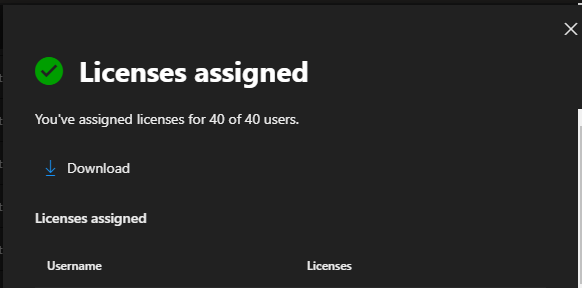
This was fairly tedious as I had to go through this process 10 times for 400 users. Also back on the active users screen it doesn’t save your place and you have to scroll back down to where you were. Keep track of the last person you selected. As you get to the bottom of the list you are waiting around for the list to load.
For unassigning the old Microsoft 365 Audio Conferencing for GCC licenses I choose to do that in the Licensing portion of the Admin Center. Here you can only unassign licensing from 20 at a time. However overall it’s easier because the list updates as you unassign them. In other words no scrolling or remembering where you were.

Wait for confirmation before moving on to the next 20.

There has to be a better way. I couldn’t find another way but I would have to imagine it can be done through PowerShell. I can understand Microsoft not wanting to make huge changes and bogging down the system. However they could schedule the changes and run them 40 at a time in the background. Do you know of a better way?
 ISASA
ISASA 
Leave a comment